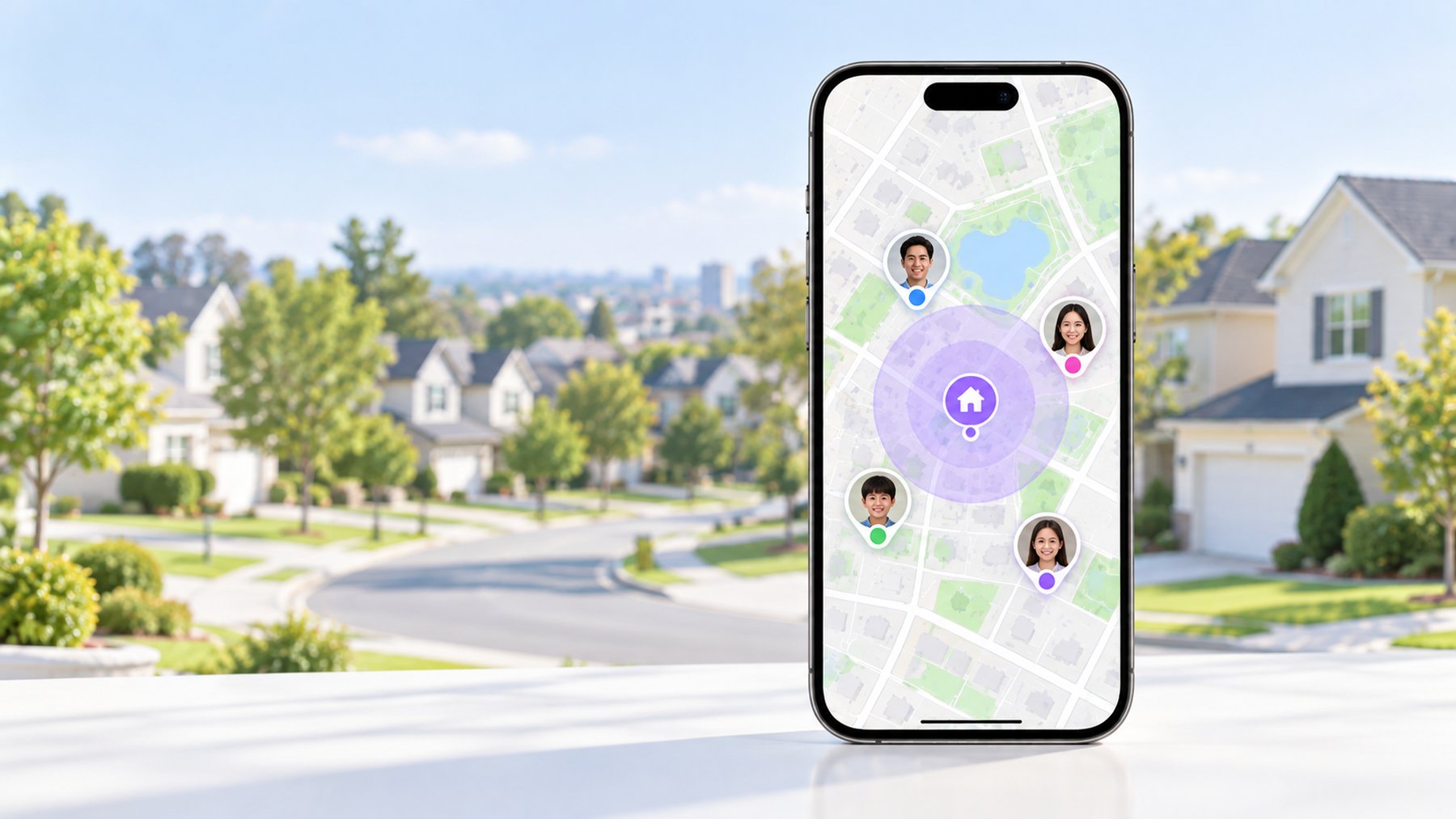
Quick answer
- Changing position does not trigger a notification; turning location off does.
- Freezing the position was the most stable approach in testing.
- A long-distance instant jump creates a discontinuity in the location history.
- A frozen pin and a simulated journey are different outcomes; check the history rather than just the latest pin.
3 ways to fake Life360 location that actually work
1. Change your iPhone's system location (no jailbreak)
A system-level location changer makes your iPhone report a different GPS position to every app — Life360 included. Select a point on the map to set the displayed Life360 location. No jailbreak is required; restarting or disabling the method restores the real location.
This method is commonly used because it also affects Find My, Snapchat, dating apps and other location-based apps on the same phone.
2. Simulate a route instead of teleporting
For a moving position, such as walking to school or driving home, route simulation moves the pin along streets at a selected speed. Life360 location history then displays a journey rather than an instantaneous change of position.
3. Leave a spare phone where you want to appear
Sign into Life360 on a second phone and leave that phone at the intended location, such as home or school. The reported coordinates are the second phone’s real location. This method depends on that phone remaining at the intended location and on which phone is checked.
How to freeze your location on Life360 in one place
Freezing holds the pin at one location, such as home, the library, or a friend's house, rather than simulating movement. Set the system location to that spot and leave it there. Your Life360 pin stays put with normal "at location" status — no "paused" label, no gap in the timeline. Life360’s own pause options display a status that your circle can see.
Can you spoof Life360 location without Life360 knowing?
Life360 has no alert for "GPS changed" — there's no notification, no warning badge. A viewer may notice instantaneous jumps, coordinates in the middle of a lake, or a pin that remains unchanged for three days. Location history and movement patterns therefore remain relevant even without a GPS-change alert.
FAQ
Turn off location on Life360 without anyone knowing — what doesn't work
- Turning off location sharing inside Life360: your circle sees "Location Paused" on your profile. This status is visible to your circle.
- Turning off Location Services or using Airplane Mode: Life360 shows "No location" / a location alert to your circle. Your circle can see the location alert.
- A VPN: a VPN changes your IP address, not your GPS. Life360 reads GPS, so your location doesn't move at all.
- Deleting the app: your circle gets told you stopped sharing / your profile shows the deletion state.
- Signing out: your last location remains fixed with a visible status change.
These options either leave the reported GPS position unchanged or produce a visible status change. A system-level location change maintains the ordinary location-sharing status described above.
Does Life360 notify my circle when I fake my location?
No. Life360 notifies for things like turning off location, low battery, or leaving the app — not for a GPS position change. A system-level change looks like ordinary movement.
Can I fake Life360 location on iPhone without jailbreak?
Yes. Current system-level changers work on modern iOS without jailbreak. Jailbreak tweaks exist but are unnecessary and risky on recent iOS versions.
Why does my Life360 location jump back to my real location?
Usually because the changer was closed, the phone restarted, or iOS stopped the background process. A stable setup keeps the location pinned until you turn it off.
Will this also change my location in other apps?
Yes — that's how system-level change works. Find My, Snapchat, Tinder, games and maps all read the same GPS, so they all show the new location. If you only want Life360 changed and nothing else, ask us — the options differ by setup.
Is a free app from the App Store enough?
App Store "fake GPS" apps can't override iOS system location — Apple doesn't allow it. They only fake location inside their own app or on a shared map card. For Life360 to see it, the change has to happen at system level.
Related guides
- Fake location on Find My iPhone
- iPhone virtual location: the complete guide
- Change iClicker location for attendance